Freeware · Windows 10 / 11
Minos Battery Monitor
Shows the battery level of your Logitech wireless mice and keyboards live, in a small always-on-top window and in the notification area. It reads the levels straight from the Logi Bolt or Unifying receiver, so it needs no account and works next to Logi Options+. Other Bluetooth devices that report a battery to Windows, such as headphones, show too.

What it offers
Live levels
Devices report changes themselves and the window updates at once. As a fallback, devices that are awake are asked every 5 minutes; sleeping devices are never woken up, they report when they wake.
Charging indicator
A bolt next to the percentage and a soft light sweeping over the bar while a device charges. When it is full the light stops and the bolt stays.
Colours that mean something
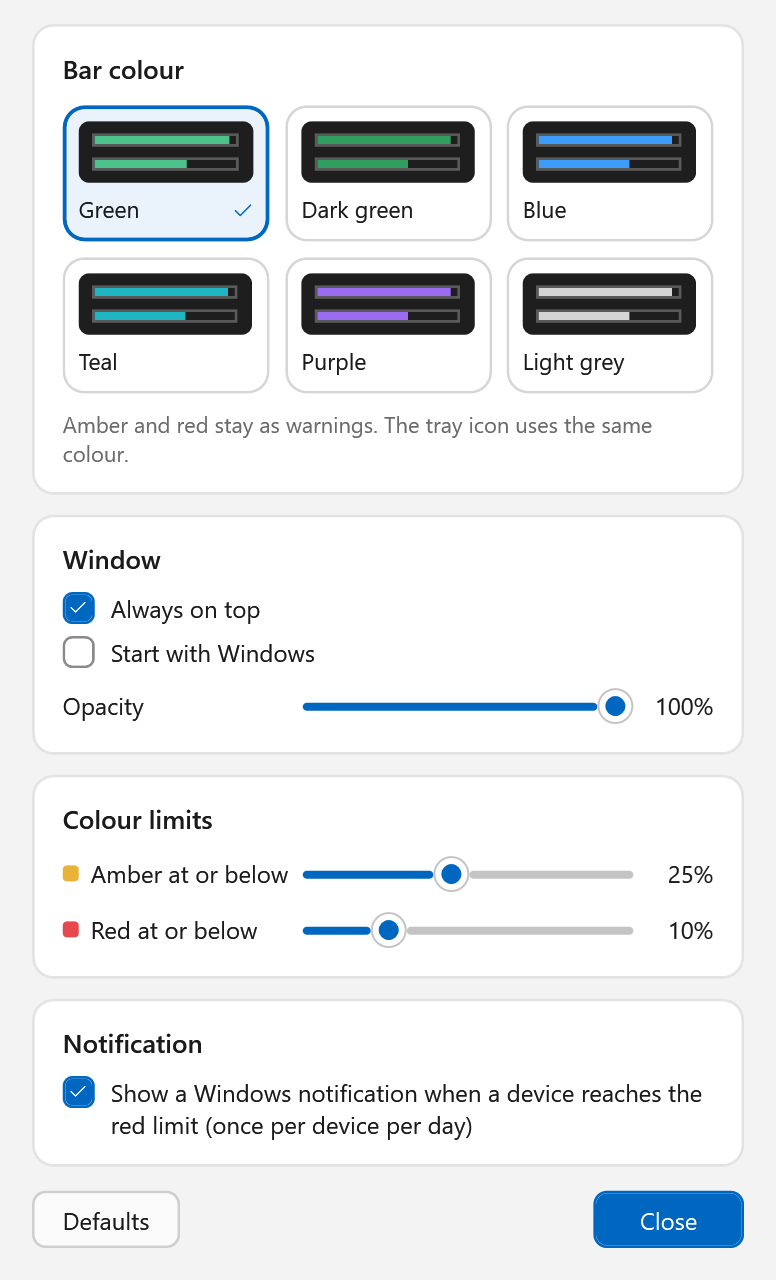
Green is fine, amber at 25 % or below, red at 10 % or below (both adjustable, also for one device only). You can pick another colour for the bars instead of green: dark green, blue, teal, purple or light grey. A charging device keeps that colour. A device that is asleep or not connected turns grey and keeps showing its last known level.
Tray icon
A small battery in the notification area, filled to the level of the lowest device and in its colour, with a bolt while any device charges. Or the level as a number, the device’s own shape (a mouse or a keyboard, lit up to its level), one icon per device, or one icon that follows the device you choose. Hover over it to see every device; a left click can open a list of every device.
Low-battery notification
A Windows notification when a connected device that is not charging reaches its red limit: once a day, or again every 4 hours or every hour, with an alert sound if you like, and once more at 5 %. One when a charging device is full. Each can be turned off.
Time left at a glance
Hover over a row: how long the battery should last (“about 6 days left”), or while it charges when it will be full (“full in about 40 minutes”), and when it was last read.
Battery history
A chart of each device’s level over the last day, week or two weeks, charging in green. Right-click a device and choose Battery history….
Hide a device
Right-click a device you do not need to see and hide it from the window, the tray and the notifications; Settings shows it again.
Names of your own
Right-click a device and choose Rename… to call it “Work mouse” or anything you like; the window, the tray and the notifications use that name.
Turned off, back, unplug
If you like, a notification when a device turns off or goes to sleep and when it is back (naps under 2 minutes are not announced), and one when a charging device reaches a level you choose, 50–95 %, so you can unplug it before it is full.
Out of the way in full screen
While a full-screen game, video or presentation covers the screen the window is on, the window hides; it comes back when the full screen ends.
Other Bluetooth devices
Headphones, game controllers and other makes’ mice and keyboards show too, with the level Windows itself shows in Settings › Bluetooth & devices, while they are connected.
Receivers and Bluetooth
Up to 6 devices per receiver, any number of receivers, Bolt, Unifying and Lightspeed mixed, and devices paired directly over Bluetooth. A device paired both ways is listed once; two units of the same model are told apart by their serial number.
Light or dark
Settings, About and the history window follow Windows’ light or dark mode, or the one you choose in Settings. The small battery window keeps its dark look.
Light and private
About 0.5 MB to download and about 3–5 MB of RAM while it runs. It only reads, from the receiver or the Bluetooth device, and never changes a device setting. It goes online only when you choose Check for updates.
Compatibility
Receivers
| Receiver | How to recognise it | Devices per receiver | Status |
|---|---|---|---|
| Logi Bolt | Small receiver with the Bolt logo (USB 046D:C548) | up to 6 | Tested |
| Unifying | Receiver with the orange Unifying star (USB 046D:C52B or C532) | up to 6 | Receiver and device list tested; battery reading not yet |
| Lightspeed | Logitech G gaming receiver (USB 046D:C539, C53A, C53D, C53F, C541, C545, C547 or C54D) | usually 1 | Expected to work; not tested |
Any number of receivers can be plugged in at the same time; the window lists the devices of all of them.
Devices
Tested
MX Master 3S, MX Master 4 and MX Keys S on Logi Bolt receivers; MX Master 3S also directly over Bluetooth, without a receiver.
Should work (Logitech lists them as Logi Bolt compatible; not tested here)
Mice: MX Master 3, MX Anywhere 3 and 3S, Lift Vertical, M650, M240, Ergo M575, M850 L. Keyboards: MX Keys, MX Keys Mini, Wave Keys, Ergo K860. Combos: MK650, MK370, MK880, MX Keys Combo, Slim Combo — each in its Logi Bolt version.
Unifying devices
Most Unifying mice and keyboards of the last decade report their battery the modern way (HID++ 2.0) and should work. Very old models that only speak HID++ 1.0 do not. Battery reading from a Unifying device has not been tested on real hardware yet. Lightspeed receivers are read the same way as Unifying ones; they are expected to work but have not been tested here.
Easy-Switch channels
Many Logitech devices can switch between up to three computers (Easy-Switch). The program reads a device on any channel that is paired with this PC: through the receiver, or directly over Bluetooth. A device paired with this PC both ways is listed once. Switched to another computer’s channel, it shows as “not connected” with its last reading, and comes back as soon as you switch back.
Not supported
- Wired devices.
- Very old HID++ 1.0 devices.
Setup
Download
Download the setup and run it: it installs for your user only, without administrator rights, and adds a Start menu entry. Prefer no installer? Take the single file and put it in a folder you like, for example Documents\Tools.
Start it
Double-click it. If Windows asks for the .NET 10 Desktop Runtime, choose “Download it now”, install it and start the program again.
Get past SmartScreen
The file is not code-signed yet, so Windows may say “Windows protected your PC”. Choose “More info”, then “Run anyway”. This happens once.
Place the window
The window opens at the bottom right of the main screen. Drag it wherever you like; the place is remembered, also across monitors with different scaling.
Start with Windows
Right-click the window, choose Settings… and tick “Start with Windows” if you want it at every logon.
Tray only, if you prefer
Left-click the tray icon to hide the window. The program keeps running in the tray, and the window stays hidden at the next start until you show it again.
Settings
Right-click the window or the tray icon and choose Settings…. Changes apply at once.
| Setting | What it does | Default |
|---|---|---|
| Appearance | Light or dark for Settings, About and the history window: as Windows, light or dark. | As Windows |
| Bar colour | Colour of the bars and of the tray icon while the level is fine: green, dark green, blue, teal, purple or light grey. Amber and red stay for low levels. | Green |
| Always on top | Keeps the window above other windows. | On |
| Hide while a full-screen game, video or presentation runs | Hides the window while a full-screen app covers its screen; it comes back afterwards. | On |
| Start with Windows | Starts the program at logon. It remembers the file’s current place; if you move the file, tick it again. When you start a newer version, the entry moves to it by itself. | Off |
| Opacity | How see-through the window is, 60–100 %. | 100 % |
| Amber at or below | Level at which a bar turns amber, 5–50 %. | 25 % |
| Red at or below | Level at which a bar turns red, 1–40 %. Always stays below amber; moving one past the other pushes it along. | 10 % |
| Amber / red for one device | Pick a device above the sliders to give it its own limits; Use the common limits undoes it. | Common |
| Notification | A Windows notification when a device reaches the red limit; Remind me again once a day, every 4 hours or every hour; Play an alert sound with it. At 5 % or less it tells you once more. A second one when a charging device is full. | On, once a day, no sound; on |
| Unplug at | A notification when a charging device reaches this level, 50–95 %, so you can unplug it before it is full. | Off (80 %) |
| Turns off / is back | A notification when a device turns off or goes to sleep for 2 minutes or more, and when it is back. | Off |
| Tray icon | A battery, the level as a number or the device’s own shape (a mouse or a keyboard); one icon per device, or one icon showing the lowest level or a device you choose. | Battery, lowest |
| A left click on the icon shows | The window (shows or hides it), or a list of every device. | The window |
| Devices | Also show other Bluetooth devices that report a battery to Windows; the devices you hid, each with Show. | On; none |
| Defaults | Puts every setting back to how it was after installing, after asking. Device names, hidden devices and Start with Windows stay. |
Window and tray
- Right-click the window for its menu: Always on top, Refresh now, Battery history…, Settings…, About…, Hide (stays in the tray), Exit. Right-click a device for Rename <device>… and Hide <device> too, and Battery history opens on that device.
- Tray icon: left-click hides or shows the window, or opens the list of every device if you chose that in Settings; right-click opens the same menu; hovering lists every device with its level.
- Lost the window? Left-click the tray icon, or start the program again: the window comes back to the bottom right of the main screen.
- Refresh now reopens the receivers and counts the devices from scratch. The program also does this by itself whenever a device is plugged in or paired.
Tray icon
 Normal
 Amber limit
 Red limit
 Charging
Messages above the list
- Searching…
- the first scan is running.
- No Logitech receiver found
- no Bolt or Unifying receiver is plugged in; it keeps looking every 30 seconds.
- No paired devices
- a receiver is there, with no device paired to it.
- A receiver could not be opened
- hover over it for the reason; it tries again every 30 seconds.
- A Unifying receiver cannot be read
- another driver holds the receiver; see the questions below.
Questions
Does it show my headphones or game controller?
If Windows shows its battery level in Settings › Bluetooth & devices, yes: the program reads that same value and lists the device while it is connected. Untick it in Settings › Devices if you do not want it. This way of reading has been checked here with an MX Master 3S over Bluetooth; it has not been tried with headphones yet.
A device is grey and says “not connected”.
It is switched off, out of range, or on another Easy-Switch channel. The row keeps its last reading and turns live again when the device comes back. A row disappears only when the device is unpaired from the receiver.
A device says “asleep”.
Logitech devices sleep after a while to save power. Move the mouse or press a key and it reports again.
How do I update it?
Right-click the window or the tray icon and choose Check for updates… (or the button in About). If there is a newer version, it shows what is new and, when you agree, downloads it, checks that it is genuine (signed by the author), and replaces the old file; your settings and Start with Windows stay. This button exists from 0.5.0 on; earlier versions are updated once by downloading from this page. A copy installed from the Microsoft Store is updated by the Store and has no Check for updates.
Does it work while Logi Options+ is running?
Yes. It only reads battery information and never changes a device setting, so both run side by side.
My Unifying receiver is not listed, or the window says “A Unifying receiver cannot be read”.
On PCs where Logitech SetPoint was once installed, its driver can stay behind and take the receiver. Open Device Manager, under Human Interface Devices uninstall “Logitech Unifying USB receiver” with “Attempt to remove the driver for this device” ticked, then plug the receiver in again.
How do I remove it?
Installed with the setup: Settings > Apps > Installed apps > Minos Battery Monitor > Uninstall; it also removes Start with Windows. The single file: untick “Start with Windows” in Settings, choose Exit and delete the file. Settings live in %APPDATA%\MinosBatteryMonitor and a small error log in %LOCALAPPDATA%\MinosBatteryMonitor; delete those folders too if you like. A copy from the Microsoft Store is removed like any Store app: Settings > Apps > Installed apps > Minos Battery Monitor > Uninstall.
Known limits
- Unifying receivers report a device waking up only after a program has switched that on, which Logi Options+ does. Without it, a device that wakes up shows as asleep until the next rescan.
- Some older devices report their level in steps, for example 25 % or 50 %, and the program shows the step as reported.
- If two receivers swap USB ports, a device can appear twice until the program is restarted.
Version history
- 0.6.125 November 2026A device that was asleep when the program started is no longer announced as turned off and back when it wakes up.
- 0.6.023 November 2026Batteries of other Bluetooth devices too (headphones, game controllers, other makes), and Logitech Lightspeed receivers. Give a device a name of your own. Low-battery reminders every hour or every 4 hours, an alert sound, and one more call at 5%. Notifications when a device turns off or comes back, and when a charging device reaches a level you choose. The window hides during full-screen games and videos and comes back afterwards. The tray icon can take the device’s own shape, and a left click can show every device. Devices are read again after the PC wakes up. Defaults in Settings now puts every setting back.
- 0.5.719 November 2026Battery history: a date at the left edge no longer sits on the 0% label.
- 0.5.618 November 2026The tray number shows 100 when every device is full; it showed 10.
- 0.5.518 November 2026Battery history: the 100% label is no longer cut off, and the line runs up to now while the level has not changed since the last reading.
- 0.5.417 November 2026Settings, About and Update follow Windows’ dark or light mode, or the one you choose. Battery history: a chart of each device’s level over a day, a week or two weeks. While charging, the tooltips say when the battery will be full. One tray icon per device, or one icon that follows the device you choose. A device can have its own amber and red limits.
- 0.5.316 November 2026Shows how long a battery should last ("about 6 days left") in the tooltips. A notification when a charging device is full. Right-click a device to hide it; Settings shows it again. The tray icon can show the lowest level as a number. About shows the minoslu mark.
- 0.5.29 November 2026Reads Logitech devices connected over Bluetooth, without a receiver. A device on both a receiver and Bluetooth is listed once. The tray icon shows a bolt while any device is charging. Installed apps shows the version that runs.
- 0.5.12 November 2026Starting a newer version closes the older one that is running; no need to exit it first.
- 0.5.08 October 2026Check for updates (window menu, tray menu, About): finds a newer version on www.minoslu.com, downloads it after you agree, checks its signature and replaces this one. The program goes online only then.
- 0.4.58 October 2026The exe’s name carries its version, and its Properties › Details are filled in. Start with Windows moves to the newest version you start.
- 0.4.48 October 2026New Settings window. The colour of the battery bars can be chosen (six colours); the tray icon follows it.
- 0.4.37 October 2026Copyright Emre Işıklı. About shows "Powered by minoslu".
- 0.4.26 October 2026About links to the program's web page at www.minoslu.com.
- 0.4.16 October 2026Says so when a Unifying receiver cannot be read because another driver holds it (for example one left behind by Logitech SetPoint), instead of ignoring it.
- 0.4.05 October 2026Runs on .NET 10: under 0.5 MB to download and about 5 MB of RAM (0.3.1: 71 MB and 107 MB). Needs the .NET 10 Desktop Runtime; if it is missing, Windows offers Microsoft’s download.
- 0.3.12 October 2026New app icon. About shows the version history and a link to the website.
- 0.3.02 October 2026English interface and a new name. Unifying receivers and the older battery reports (Battery Status, Battery Voltage). One self-contained exe.
- 0.2.02 October 2026Tray icon, Settings and About windows, charging animation, low-battery notification.
- 0.1.02 October 2026First version: live battery level of Logi Bolt devices in a small always-on-top window.
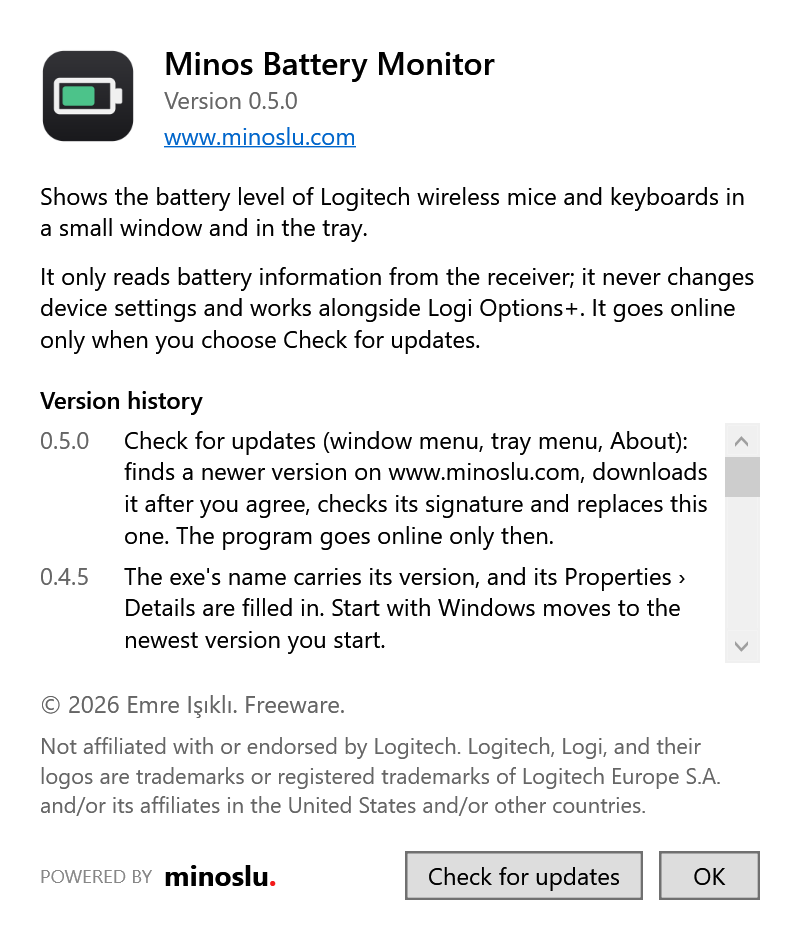
Not affiliated with or endorsed by Logitech. Logitech, Logi, and their logos are trademarks or registered trademarks of Logitech Europe S.A. and/or its affiliates in the United States and/or other countries.